Banana Monkey Destruction Controls & Input Guide
Reliable inputs mean reliable banana rate tests—learn every platform control before optimizing upgrades.
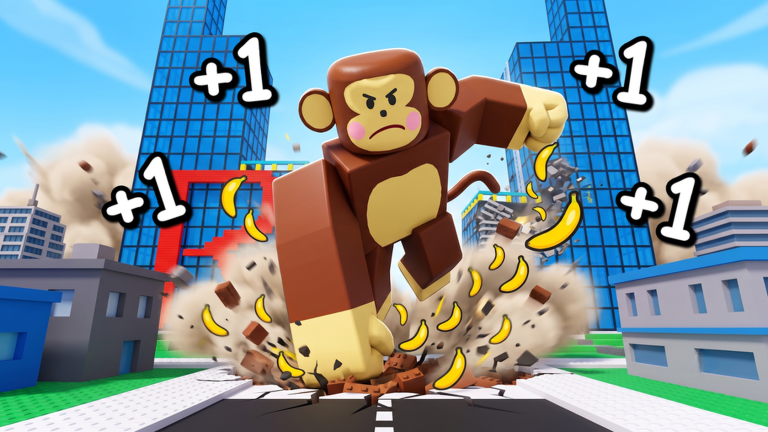
Precision punching drives every metric in +1 Banana Monkey Destruction. Sloppy inputs deflate bananas per minute tests, hide true upgrade value, and make world destruction routes feel laggy even on good connections. This controls reference covers PC, mobile touch, and controller layouts as implemented in Kaboom Creations’ early-access build—verify edge cases after major updates because UI buttons occasionally move.
New players should read this alongside Getting Started. Veterans return when switching devices or when BPM benchmarks suddenly drop without stat changes.
PC controls (keyboard and mouse)
Roblox PC defaults apply unless the experience overrides them in a dedicated settings panel:
| Action | Default input |
|---|---|
| Move | WASD |
| Jump | Space |
| Punch / primary action | Left mouse click or bound action key |
| Camera | Mouse look |
| Shift lock (optional) | Shift — useful for lining up cluster punches |
Punch rhythm: Hold positioning steady and click rhythmically rather than spamming while rotating camera wildly. Camera movement mid-swing can miss hitboxes on thin props.
Shop navigation: Open upgrade menus via on-screen buttons or proximity prompts in hub areas. Confirm purchases with the same click binding; mis-clicks waste bananas early when tiers are expensive relative to income.
Trainer claim: Locate the daily free trainer UI element—often near spawn or shop hubs per Upgrades notes. Click once per reset window; there is no keyboard shortcut unless added later.
Mobile controls (touch)
Mobile incremental players face thumb reach and camera drift challenges:
| Action | Typical touch zone |
|---|---|
| Move | Left virtual thumbstick |
| Jump | Dedicated jump button |
| Punch | On-screen action button (often right side) |
| Camera | Drag on empty screen regions |
Tips for accurate BPM tests:
- Pinch-zoom camera slightly outward to see cluster hitboxes in city zones.
- Use jump sparingly during timed tests—airtime reduces punch uptime.
- Increase touch sensitivity only if Roblox settings allow; too high causes overshoot between targets.
Mobile players may rank movement speed upgrades slightly higher for QoL in Early Game Tier List—economic priorities unchanged.
Controller (gamepad)
If Roblox maps gamepad defaults:
| Action | Common binding |
|---|---|
| Move | Left stick |
| Camera | Right stick |
| Punch | Right trigger or A/Cross equivalent |
| Jump | A/Cross or face button per profile |
Enable shift-lock equivalent if offered—destruction radius upgrades benefit from stable facing direction.
Punch timing and hit registration
Controls are not just bindings—they are timing:
- Hit registration delay: Early access netcode may desync swings slightly; if punches visually connect yet deal no damage, reposition or rejoin server before blaming upgrades.
- Combo gaps: Some incrementals punish button mashing with hidden recovery frames. Tap at the speed objects actually break, not maximum CPS.
- Radius overlap: Stand so one swing hits multiple props when destruction radius is invested.
Document device and input method when sharing BPM screenshots with friends—cross-device comparisons otherwise mislead.
UI navigation: upgrades and stats
Upgrade shops may use tabs, scroll wheels, or proximity kiosks. General workflow:
- Approach shop trigger or open menu button.
- Select stat category (punch, multiplier, size, etc.).
- Read price and tooltip.
- Purchase single tier.
- Close menu before resuming timed punch tests—menu time inside calculator windows corrupts data.
Track which categories map to Upgrade Priority tiers so muscle memory shortcuts do not buy wrong lines.
Trainer and daily reset UI
Trainer claims are date-gated. UI typically shows:
- Availability indicator (ready vs cooldown).
- Remaining buff duration after claim.
- Optional stat summary of active bonuses.
Set a real-world reminder if you play casually—missing trainer days slows banana income more than skipping one punch session.
Accessibility considerations
Roblox platform settings include reduced motion, larger UI, and custom keybinds where supported. Rebind punch away from conflicting keys if you use keyboard macros for chat.
Avoid third-party auto-input tools; they overlap with executor scripts discussed on Scripts Hub and carry account risk.
Controls troubleshooting
| Symptom | Likely cause | Fix |
|---|---|---|
| Punches miss thin props | Camera angle | Lower camera, enable shift lock |
| BPM collapsed overnight | Device switch | Re-learn timing; re-benchmark |
| Cannot open shop | Wrong hub area | Return to spawn shop trigger |
| Trainer button gray | Cooldown active | Wait for daily reset |
| Input lag spikes | Network or FPS | Lower graphics; retry server |
Related pages
- Banana Calculator — timed tests need clean input
- World Destruction — routing between targets
- Upgrades — shop stat meanings
- Systems Hub — loop overview
Frequently Asked Questions
Quick answers to the most common questions.
Can I rebind punch on PC?
Use Roblox-level keybind settings if available, or experience-specific rebinding if Kaboom Creations adds a settings menu in future updates.
Which platform is best for BPM testing?
The platform you main on. Consistency matters more than PC versus mobile absolutes.
Does auto punch exist in legitimate controls?
Only if unlocked via in-game upgrades—not via external scripts. See Upgrades and Scripts pages for the distinction.
Why do punches stop registering near lag spikes?
Network desync temporarily breaks hit detection. Rejoin or switch servers before purchasing upgrades to fix a connection issue.